How to Fix and Finish Your Hunt Log After the Hunt
Your hunt log is the story of your hunt, and you can still change it after you get home. Maybe you logged the same bull twice, forgot the cows you glassed at first light, or a pin landed a ridge away from where it happened. Here’s how to fix it.
Edit or delete · The red pin · Move a pin · Add an event later · Put it on the map · Import & export
1. Swipe left to edit or delete
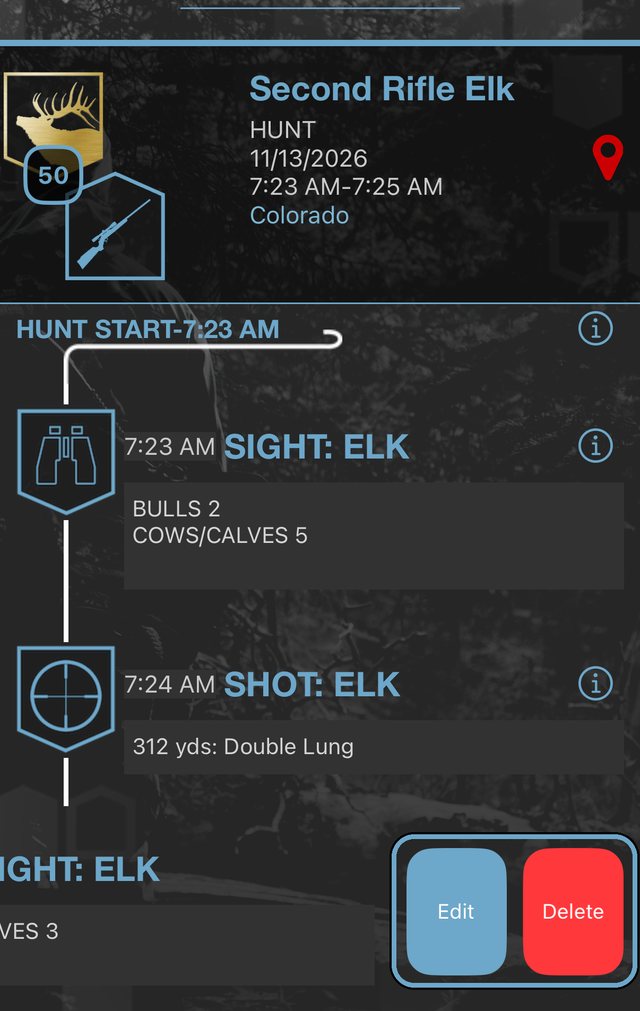
Open HUNT LOGS and tap a hunt. On any event in the timeline, swipe left. Two buttons appear:
- Edit opens the event so you can change the details, add a note or photo, or give it a location.
- Delete removes it after you confirm. Use it when you logged something twice by mistake.
You can only edit your own hunt logs. Shared logs are view-only.
2. The red pin: this hunt on the map
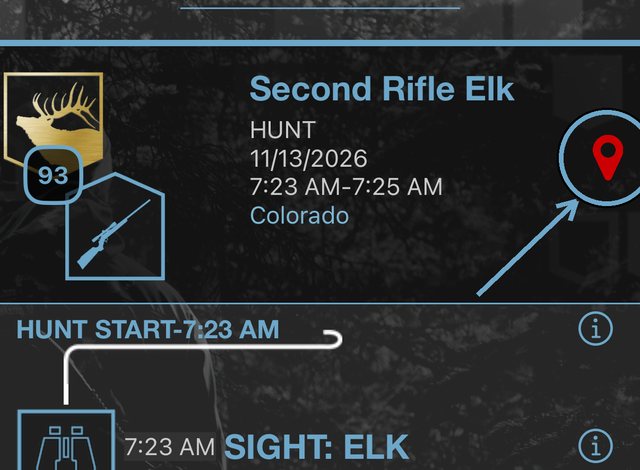
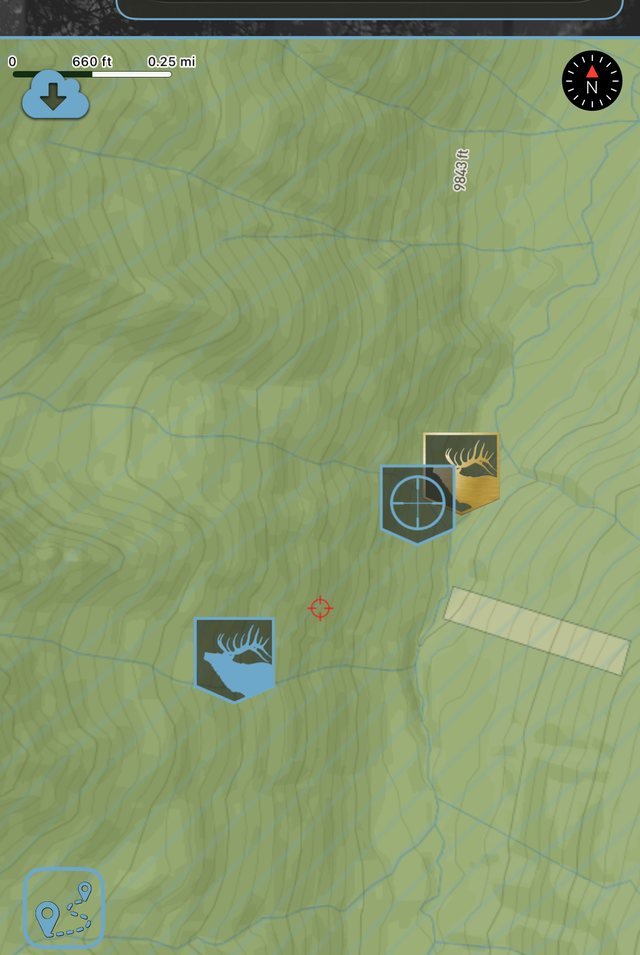
At the top of every hunt log, next to the hunt name, is a red map pin. Tap it to open a map with only this hunt on it: where you started, plus every event in this log that has a GPS location. Your other hunts and waypoints stay off the map, so you can see exactly where this hunt happened.
3. Move a pin to the right spot
GPS can drift, or you logged a bull from where you were standing instead of where he was. To move it:
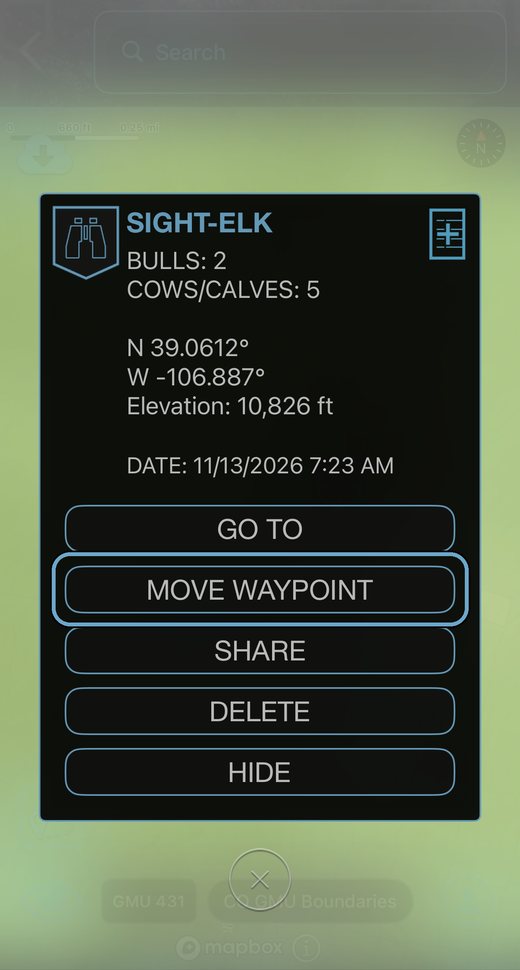
- On the hunt’s map, tap the pin.
- Tap MOVE WAYPOINT.
- Slide the map until the pin sits on the right spot. The distance from the old spot shows at the top.
- Tap SAVE. Changed your mind? UNDO puts it back.
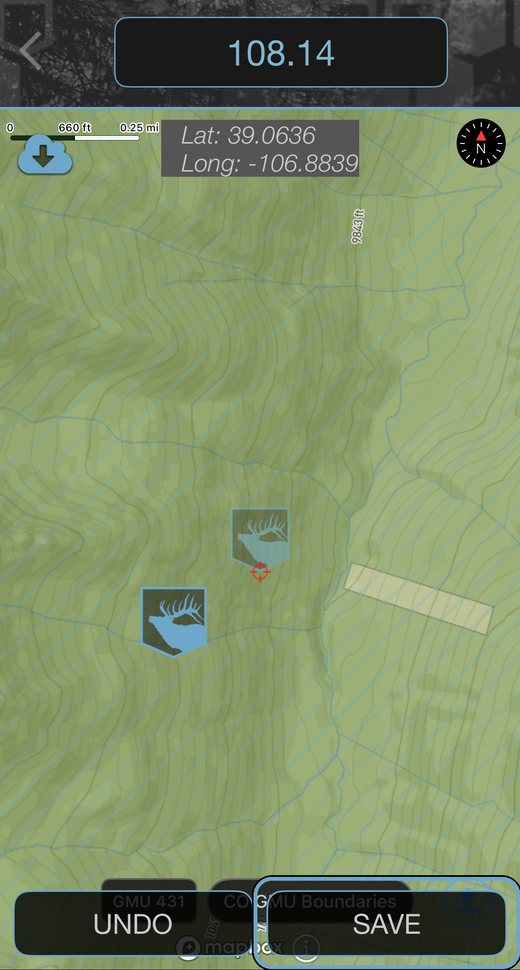
Moving a pin only changes where it is. The time you logged it stays the same.
Need to delete a waypoint you dropped by mistake? Tap it on the hunt’s map and choose DELETE.
4. Adding an event after the hunt
Forgot to log something? Open the hunt, tap ADD EVENT at the bottom, and pick the event.
The time starts in the middle of your hunt. Tap EDIT TIME to set when it actually happened.
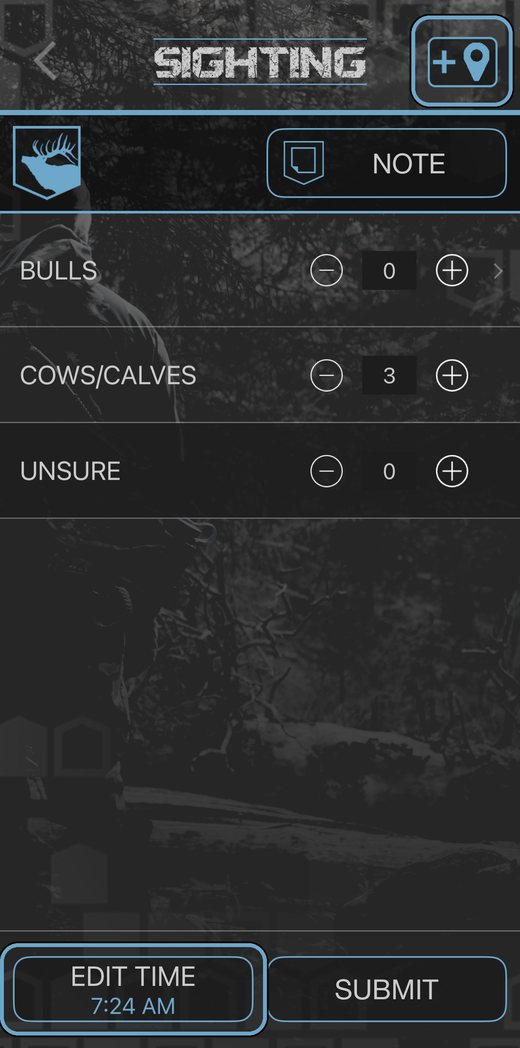
5. Put it on the map later
Want that event on your hunt map too? Give it a location whenever you like:
- Swipe left on the event and tap Edit.
- Tap the location button at the top right (a map pin with a plus).
- Slide the map until the crosshair is where it happened. The map opens near the start of your hunt.
- Tap SAVE, then SUBMIT.
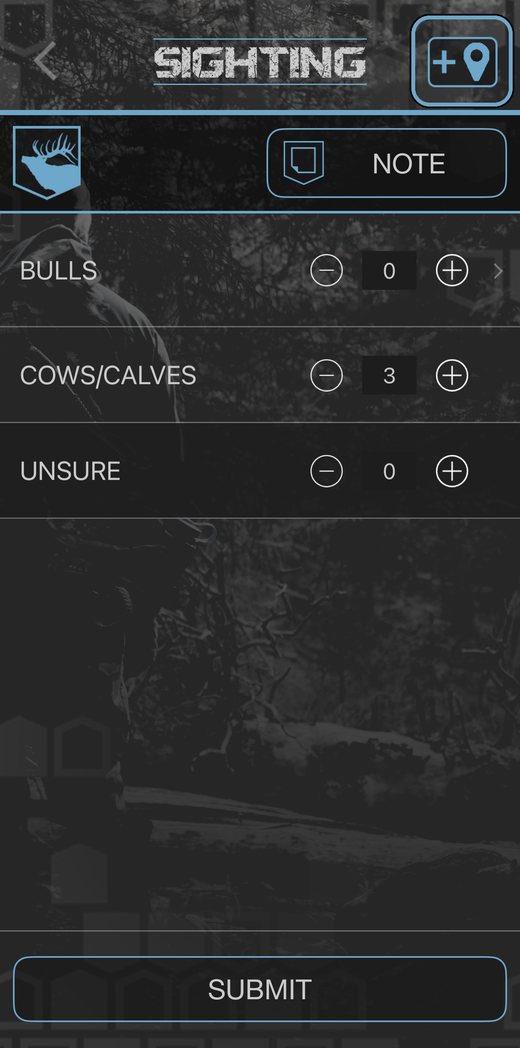
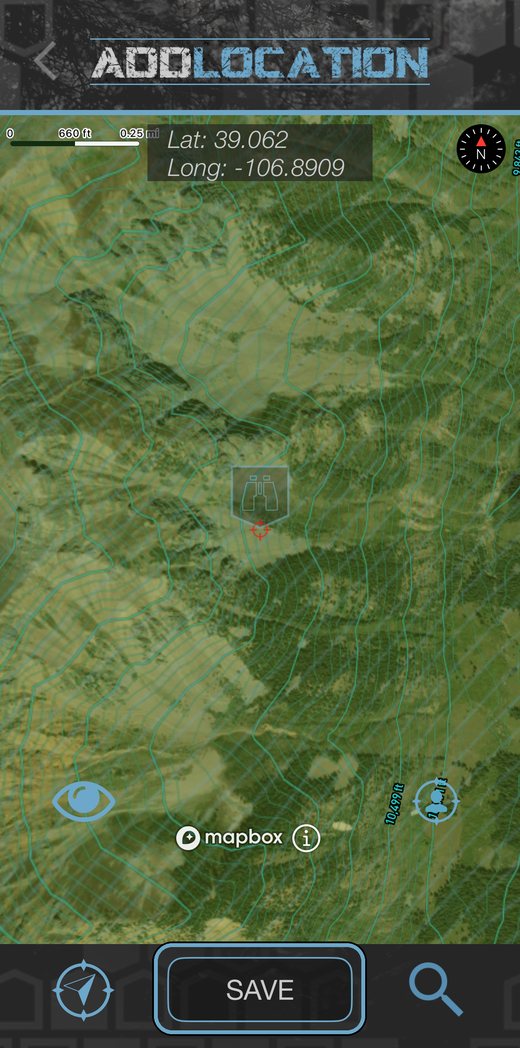
You can also tap the location button while you’re adding the event. Either way, the event keeps its time.
Take your pins anywhere
Your waypoints aren’t stuck in HuntLeague. You can bring pins in from other mapping apps and send yours out to them.
Export
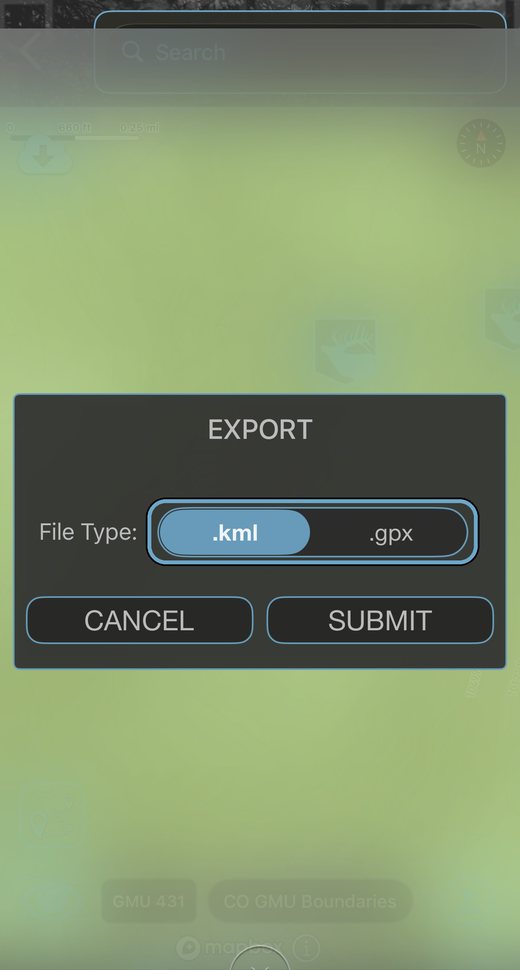
On the map, open the Tools menu and tap Export Waypoints. Pick .gpx or .kml, then pick what to export: all your waypoints, everything on screen, pins you select, or the unit you’re in. The file is made on your phone, so it works with no signal. Send it to onX, Gaia GPS, Garmin or any mapping app that opens GPX or KML files.
Tip: open a hunt’s map with the red pin first, then choose All On Screen to export the pins from that hunt.
Import
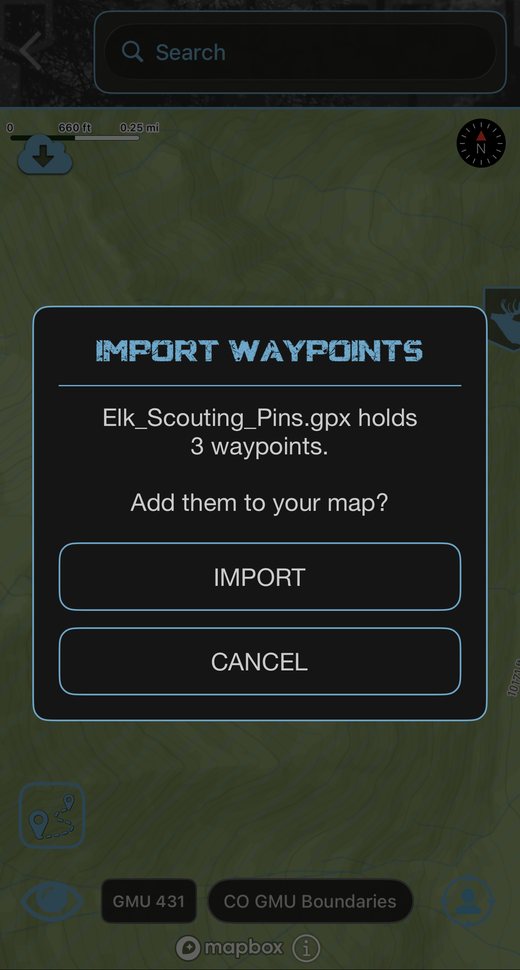
Got a .gpx file from onX, Gaia GPS, Garmin or a buddy? Open it on your phone from Files, email or the other app’s share button, and choose HuntLeague. We’ll show you how many waypoints are in the file, and nothing is added until you tap IMPORT. Only waypoints come in. Tracks and routes in a GPX file don’t.
Have a .kml or .kmz file, or routes you want to keep? Sign in at app.huntleague.com/portal, open Map, and use the Import tab. Your waypoints and routes show up in the app the next time you open the map with a signal.
Update HuntLeague from the App Store or Google Play to make sure you have all of this.
Questions or stuck on a log? Write to support@huntleague.com and we’ll help you sort it out.